



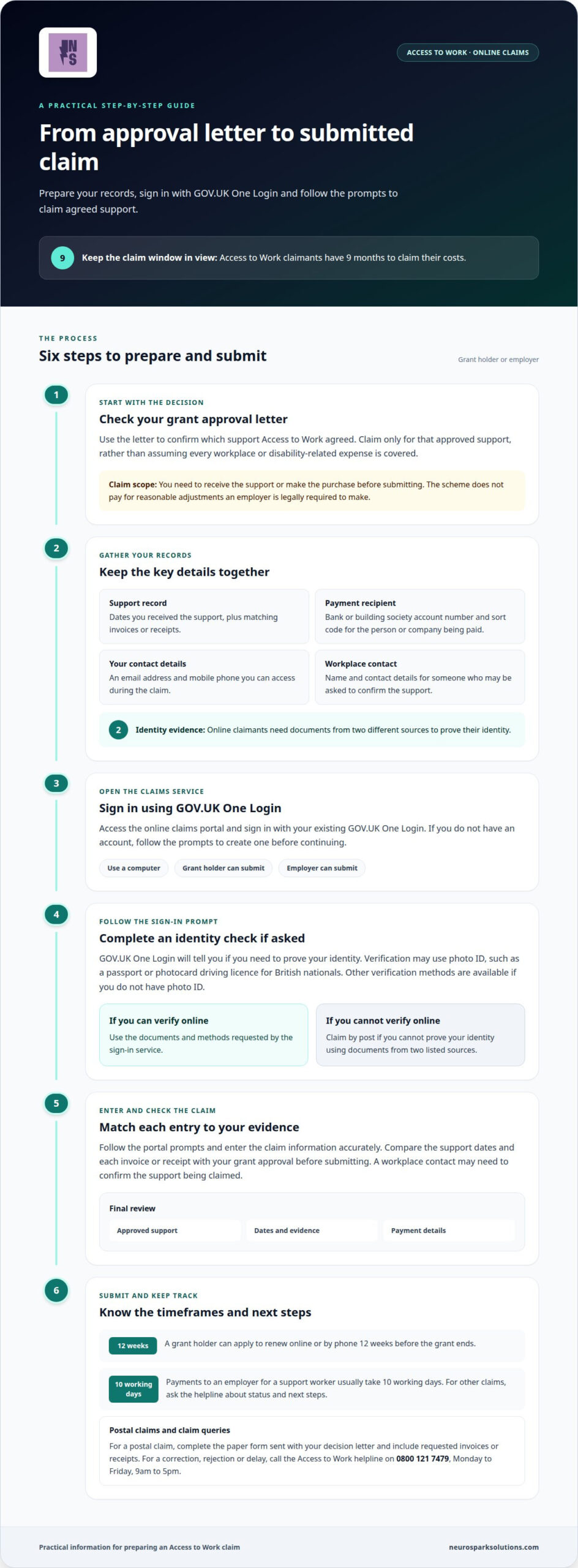
To complete an Access to Work claim form online, sign in to the claims service using GOV.UK One Login. Have your grant approval letter, the dates you received support, invoices or receipts, and the payment recipient’s bank details ready. You can submit a claim online as the grant holder or an employer. GOV.UK One Login will tell you if you need to verify your identity, and offers other verification methods if you do not have photo ID.
This guide explains how to complete an Access to Work claim form online, what to have ready before you start, and what to expect during sign-in and submission. Access to Work claimants have 9 months to claim their costs, according to the Department for Work and Pensions, so gathering your documents first can help you complete the steps clearly and submit your claim in good time.
Key Takeaways
- Start with your grant approval letter, then access the online claims portal and sign in using GOV.UK One Login.
- Gather the dates of your support, invoices or receipts, and the recipient’s bank details before you begin.
- Have your contact and identity details ready, and follow the portal prompts to complete and submit your claim.
- If you need support with workplace needs beyond the claim process, Neuro-Sparks training solutions offers Access to Work support and workplace training.
How do I access the online claims portal?
- Start with your approval letter. You need a letter confirming your Access to Work grant has been approved before claiming online. The letter also contains the paper claim form if you choose to claim by post. Use the approval details to identify the support covered by your grant, rather than assuming every workplace or disability-related expense is eligible.
- Sign in to the online claims portal. Use GOV.UK One Login to access the portal. You can create an account if you don’t already have one. Claimants and employers can submit funding claims online using a computer, so you can choose the route that suits your role in the claim.
- Gather the claim details. Have the dates you received support, invoices or receipts, and bank details for the person or company receiving payment. A workplace contact’s details may also be needed to confirm the support being claimed. Keep the information together before starting the form.
- Keep within the claim period. Access to Work claimants have 9 months to claim their costs, according to the Department for Work and Pensions. Claiming reimburses agreed support, so you need to receive the support or make the purchase before submitting. The scheme does not pay for reasonable adjustments an employer is legally required to make.
- Renew before your grant ends. An Access to Work grant holder can apply to renew the grant online or by phone 12 weeks before it ends, according to the Department for Work and Pensions. For a postal claim, complete the paper form sent with your decision letter and include requested invoices or receipts.
- Know who can submit and what to do next. Employers can submit funding claims online, and a workplace contact may be asked to confirm the support. For a correction, rejection or delay, contact the Access to Work helpline on 0800 121 7479, Monday to Friday, 9am to 5pm. Payments to an employer for a support worker usually take 10 working days. For other claims, ask the helpline about the status and next steps.
Claiming online with GOV.UK One Login
- Open GOV.UK One Login from the claims portal. The Access to Work online claims portal uses GOV.UK One Login. It is the government sign-in for accessing the online service. If you already have an account, sign in with it. If not, follow the prompts to create one before continuing.
- Use your own sign-in details. Keep your login details separate from your claim documents. The portal uses One Login to identify you; the claim itself contains the grant and support information. If an employer is helping prepare the claim, agree who will enter the details and submit it.
- Follow any identity-check prompt. The service tells you at sign-in if you need to prove your identity. Verification may involve photo ID, such as a passport or photocard driving licence for British nationals. Other verification methods are available if you don’t have photo ID. Online claimants need documents from two different sources to prove identity.
- Prepare for an alternative route if needed. If you cannot prove your identity using documents from two listed sources, claim your Access to Work grant by post. This keeps the claim moving without relying on an online identity check you cannot complete.
- Continue to the claim with your records ready. Once signed in, follow the portal prompts and enter the claim information accurately. Keep invoices and receipts available, along with the support dates and payment details. A workplace contact may need to confirm the support being claimed, so have their details ready if requested.
- Separate sign-in from workplace decisions. GOV.UK One Login verifies access; it does not decide what support is appropriate for a workplace. If your team needs practical guidance on supporting different working needs, workplace training can help managers build understanding and apply it at work.
Information needed for an application
- Set out the claim period. Record the dates when the approved support took place. Keep these dates together with the relevant service or purchase records, so each item can be matched to the time it was provided. This helps distinguish the support you’re claiming from other workplace activity.
- Gather evidence for each item. Match invoices or receipts to the support being claimed. Check that each document shows what was provided and its cost. Access to Work reimburses agreed support costs, so evidence should relate to the approved support, not unrelated spending.
- Prepare the payment details. Have the bank or building society account number and sort code for the person or company receiving payment. Confirm whose account it is before entering the details. This matters if an employer or support provider receives payment rather than you.
- Have contact details ready. Online claims require an email address and mobile phone. Use contact details you can access during the claim process, so you can receive messages or respond to prompts connected with your submission.
- Arrange workplace confirmation. A claim may require details of a workplace contact who can confirm the support being claimed. Agree who can provide that confirmation, then have their name and contact details ready if the form asks for them.
- Prepare identity evidence separately. Online claimants must prove their identity using documents from two different sources. GOV.UK One Login will tell you if verification is needed. Keep the documents available while signing in, and use the alternative claim route if you cannot complete the check.
- Keep the grant decision close. Use your approval letter to match the claim to the support Access to Work agreed. Before submitting, compare the claim entries with your dates and receipts. This final review helps keep the claim focused on eligible, approved support linked to your workplace needs.
Completing the online claim form
- Open the claim after signing in. Use the Access to Work online portal on a computer and follow its prompts. Keep your grant approval details nearby, so you can refer to the support covered by your decision. The portal is where you enter and submit the funding claim.
- Describe the support clearly. Use a straightforward description that identifies the service or item you’re claiming for. For example, distinguish a support session from equipment rather than grouping unrelated items under a broad label. Clear descriptions help connect each part of your claim with its supporting record.
- Enter the relevant dates. Use the dates when the support was provided or the item was purchased. Match each date to the correct invoice or receipt. If several records cover different dates, keep them organised separately instead of relying on memory while completing the form.
- Match the evidence to the claim. Check that the invoice or receipt supports the item and amount entered. Access to Work claims need evidence of the support’s cost. If a workplace contact is asked to confirm the support, make sure the details you provide are consistent with what they can verify.
- Enter the payment information carefully. Provide the bank or building society details for the person or company receiving the grant payment. Review the account number and sort code against the intended recipient’s details. This reduces the risk of entering payment information for the wrong payee.
- Review before you submit. Read through the descriptions, dates, evidence and payment details together. Correct any mismatch before sending the claim. Once submitted, keep a copy of the information and documents you used, so you can refer to them if you need to find out more about the claim.
- Choose a manageable claiming routine. Claimants can submit claims monthly, or weekly if needed. Grouping records by claim period can make it easier to match each receipt to the relevant support. Submit complete, clearly organised information rather than leaving documents scattered across separate files.
Neuro-Sparks training solutions: Workplace training
Neuro-Sparks training solutions helps organisations put Access to Work support into practice through workplace training and Access to Work guidance. Its practical training helps teams understand neurodiversity and respond to different working needs.
This support can suit employers and managers who want agreed adjustments to work day to day, or teams seeking clearer approaches to workplace communication. Training can help organisations consider team-related needs and appropriate workplace adjustments.
These services can complement the claim process, but they do not replace a grant decision or the evidence required for a claim. To discuss workplace support with Neuro-Sparks, book a call.
Turn approved support into practical change
Knowing how to complete an Access to Work claim form online is one step towards making workplace support work well. The next is connecting the support received with the day-to-day experience of the person using it. Clear communication between employees and managers can help make adjustments part of how work gets done.
For teams looking to build that understanding, Neuro-Sparks training solutions’ workplace training offers practical guidance. Its training is delivered by a CEO who is TAP Accredited and holds a PG Cert in Neurodiversity. This can help managers approach workplace needs with greater understanding and identify useful ways to support different working styles.
If you’d like to explore how this could support your team, contact Neuro-Sparks training solutions. A thoughtful next step can help create a workplace where people can contribute and do their best work.
Frequently asked questions
How do I apply for Access to Work?
Apply for an Access to Work grant before paying for support or equipment. Applying for a grant is separate from claiming reimbursement, and funding can only cover support from the date you submit your application. Explain how your disability or condition affects your work and what practical support you need. The grant decision sets out the support approved for your circumstances.
Need help filling out benefit forms?
Neuro-Sparks provides Access to Work support to help you understand the scheme and organise information related to your workplace needs. The grant holder or employer remains responsible for submitting a claim through the appropriate Access to Work route. For other benefit forms, the required information depends on the benefit and its application process.
Where can I find the Access to Work online claim form?
Find the online claims service through GOV.UK, then sign in with GOV.UK One Login. You complete the claim in the portal rather than downloading a blank form. If an employer submits the claim, a workplace contact who approves it does not need to create an account. Keep the grant decision handy so your claim matches the approved support.
What information and documents are needed to complete an Access to Work claim?
Prepare the information needed to match each claimed item with its evidence: a description of the support, the dates, an invoice or receipt, and the payment recipient’s details. You may also need an email address, mobile phone number, account number and sort code. If GOV.UK One Login asks you to verify your identity, have identity documents from two different sources ready. Organising records by support item makes them easier to check.
How do I submit an Access to Work claim online step by step?
Sign in to the claims service with GOV.UK One Login and follow the prompts to enter your claim details. Match each support item to its dates and evidence, then enter the payment recipient’s details. Check for inconsistencies before submitting. If you cannot verify your identity online, use the postal claim route.
How do I claim costs for support workers, travel, or specialist equipment?
Claim costs only when they relate to support approved in your Access to Work grant. Pay for the agreed support first, then submit your claim with evidence such as an invoice or receipt. For travel costs, keep records showing the journey and expense. For equipment, identify the approved item and match it to evidence of purchase.